Day 8

Full-stack AI chat app

You ship
WorkBot's web chat deployed on either provider, with tool status and results in the UI.

What you'll build today

After Day 7, WorkBot's assistant can call tools and research a policy question, but only in your terminal. The employees WorkBot serves work in a browser, so today the assistant moves onto the web.

You build a chat page that streams each reply as the model writes it, renders Markdown and code, and shows every tool call while it runs and after it finishes. You build it on the AI SDK, Vercel's TypeScript library for model calls, which carries the stream from the server to the browser for both providers. Along the way you learn how a streamed response travels from a route handler to the page, and how the browser keeps a list of conversations.

By the end of the day the web chat is deployed, and the same assistant also answers in a panel of the admin console.

By the end of the day you can

  • Build a production-quality chat app with Next.js and the Vercel AI SDK, on Anthropic or OpenAI
  • Stream a response from the server to the browser
  • Show tool execution status and results in the interface

Topics

Next.js + Anthropic SDK

  • Route Handlers: API endpoints in the Next.js App Router
  • Server-side streaming: the route handler returns the model's stream as a ReadableStream, which the browser reads as it arrives
  • Vercel AI SDK: the useChat hook manages the chat state in the browser, and createUIMessageStreamResponse returns the stream from the route handler
  • Provider packages: the same streamText call works for Anthropic and OpenAI, and the route handler reads the provider from a setting
  • Environment variables: keep API keys safe in Next.js

Streaming UI Patterns

  • Show streamed text as it arrives: buffering, and rendering partial Markdown
  • Markdown rendering with react-markdown
  • Code blocks: syntax highlighting and a copy button
  • Typing indicators: show one while you wait for the first token
  • Auto-scroll: scroll to the bottom as new content streams in, and pause when the reader scrolls up
  • Message states: sending, streaming, complete, error

Tool Calls in the UI

  • Show a tool running: "Searching the web...", "Reading page..." and progress indicators
  • Show tool results inline: search results as cards, calculations as formatted output
  • Collapsible tool details: show or hide the raw tool input and output
  • Error states: what to show when a tool call fails

Chat App Architecture

  • Message storage: start in memory, move to localStorage, then to a database
  • Conversation management: start a new chat, switch between conversations, delete one
  • The message input: a textarea that grows as you type, Enter to send, Shift+Enter for a new line, and keyboard shortcuts
  • Responsive layout: a sidebar for conversations, a main area for the chat, and a layout that works on a phone

Build

Features shipped today

  • WorkBot: A web chat with streaming, Markdown, tool status and results, and conversation history. The same chat runs in a panel of the admin console, on the same route handler. Both are deployed

Build an end-to-end AI chat app with Next.js:

  1. Backend: a Route Handler that streams responses from either provider through the AI SDK, with tool calls (reuse the Day 7 tools)
  2. Frontend: a chat interface with:
    • Streaming text rendered as Markdown
    • Code blocks with syntax highlighting and a copy button
    • Tool execution status indicators (a spinner and status text)
    • Tool results rendered inline (search results as cards, and so on)
    • Conversation history in localStorage
    • New chat, and switching between conversations
  3. Deploy: push to GitHub, deploy to Vercel, and check that it works in production

Step by step

Stream chat from a route

The terminal keeps the provider loop from Days 6 and 7. For the web, the AI SDK's streamText runs the model with the Day 7 tool registry. It produces a UI message stream, the format that the AI SDK's useChat hook reads in the browser.

Study first

  • Read the AI SDK's chatbot guide for useChat, UI messages and their parts, and the shape of the route handler.
  • Read the streamText reference for tools and stopWhen, and learn convertToModelMessages, which turns UI messages into the messages the model takes.

Build

  1. Run pnpm add ai @ai-sdk/react @ai-sdk/anthropic @ai-sdk/openai, which adds the SDK, its React hooks and one adapter per provider.
  2. Write src/lib/chat.ts, where chatModel() returns the configured provider's default model from the Day 6 list, or the id in CHAT_MODEL, through that provider's AI SDK adapter.
  3. In the same file, write chatTools, which maps the registry's tools into the SDK's tool() shape. Each tool's schema and execute come from the same Day 7 definition, so the terminal and the web share one set of tools.
  4. Write src/app/api/chat/route.ts. Validate the body, then check the messages with safeValidateUIMessages against the tools. Stream with the system prompt, the tools and stopWhen: isStepCount(8), and answer with createUIMessageStreamResponse.
  5. Write a unit test with the SDK's MockLanguageModelV4, a fake model from its testing helpers, to check the shape of the stream. Also check that a body without an id and a message without parts both get a 400.
  6. Write a live test that asks the real small model for a calculation and finds the calculator call in the stream.

Done when

  • curl -N against /api/chat with one user message prints a UI message stream, and pnpm test:live shows the tool call.
Technical notes
  • Validate the envelope, the body's id and messages, with Zod, and the messages themselves with safeValidateUIMessages, which knows the shapes of the tool parts. A bad body then gets a 400 that names the failure, not a stream that fails halfway.
  • isStepCount(8) matches the 8 rounds of the Day 7 loop.
  • The model id comes from the provider list in src/lib/providers.ts, so the web and the terminal agree on the default. CHAT_MODEL overrides it, which is how the live suite runs on the small model.
Build the chat window

The route now streams, and the page has to show that stream as a conversation. A UI message is made of parts, so the page renders each text part as Markdown and each tool part as a panel that follows the tool's state.

Study first

  • Learn the UI message parts from the tool usage guide. A part is text, or a tool part with a state of input-streaming, input-available, output-available or output-error.
  • Read about react-markdown and rehype-highlight, which render Markdown as React elements and highlight the code inside it.

Build

  1. Write Message. It shows a user message as a bubble, and an assistant message as Markdown for its text parts and a collapsible ToolCall for each tool part.
  2. Label each ToolCall by its state. It shows the input while the tool runs, and the output or the error once it is done.
  3. Write Markdown on react-markdown with rehype-highlight, and CodeBlock, a pre with a button that copies its textContent.
  4. Write Chat around useChat. Its message list follows the stream while the reader is at the bottom, and it stops following when they scroll up. A pulsing dot shows while the request is pending, and a Stop button shows while the reply streams.
  5. Give Chat a Textarea that grows with its content, where Enter sends and Shift+Enter adds a new line.

Done when

  • A question with arithmetic shows the calculator call running, then its result, then the answer with Markdown.
Technical notes
  • CodeBlock copies textContent, so the copy holds the code, not the highlighting markup.

Keep conversations in the browser

A chat that forgets everything on reload is of little use, so today the conversations live in the browser's localStorage. A small store keeps them there, and the page lists them so you can switch between them or start a new one.

Study first

  • Learn useSyncExternalStore, which lets React read a store that lives outside it, in this page localStorage.
  • Read about io from next/cache, which holds a component back while the page prerenders, so a random value is not baked into the page at build time.

Build

  1. Write src/lib/conversations.ts, which keeps conversations in localStorage behind subscribe, getConversations and saveConversations. Its upsert keeps a title from the first question and moves the conversation to the front.
  2. Write Conversations, which shows the list in a sidebar, or as a select and a button on a phone, next to the open chat.
  3. In Conversations, call io() before you create a new id with crypto.randomUUID(), so the build does not bake one id into the page. Then render Conversations inside Suspense on /chat.

Done when

  • After a reload, the conversation is in the list, and New chat starts another one.
  • pnpm build prerenders /chat with no conversation id in the HTML.
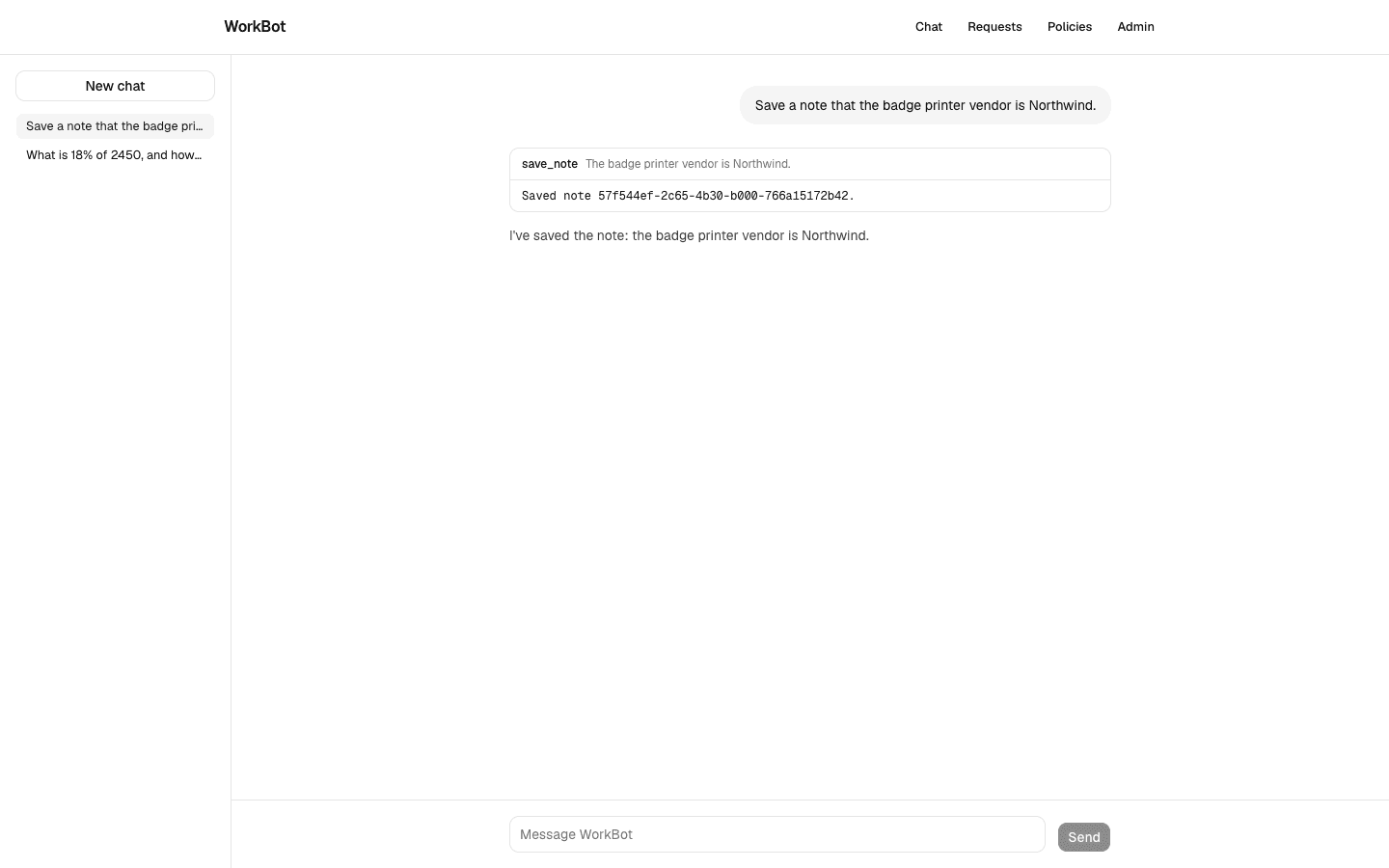
The web chat
The browser's list holds two conversations, and the open one shows a tool call expanded, with its input and result, above the reply.
Technical notes
  • useChat is keyed by the conversation id. When someone switches conversations, key={activeId} remounts the component, so one hook never holds two conversations.
  • onMessages fires when the status returns to ready, so the page saves a conversation once per reply, not once per token.
  • The store caches the parsed list by the raw storage string. Unchanged data keeps the same array reference, so useSyncExternalStore does not re-render.
  • getServerConversations returns a constant empty list, so the server render and the browser's first render agree, and the stored list arrives after hydration.
  • Deleting a conversation and showing a search result as a card wait for a later day. They will extend the list, the switch and the tool panel you build today.

Add the console assistant

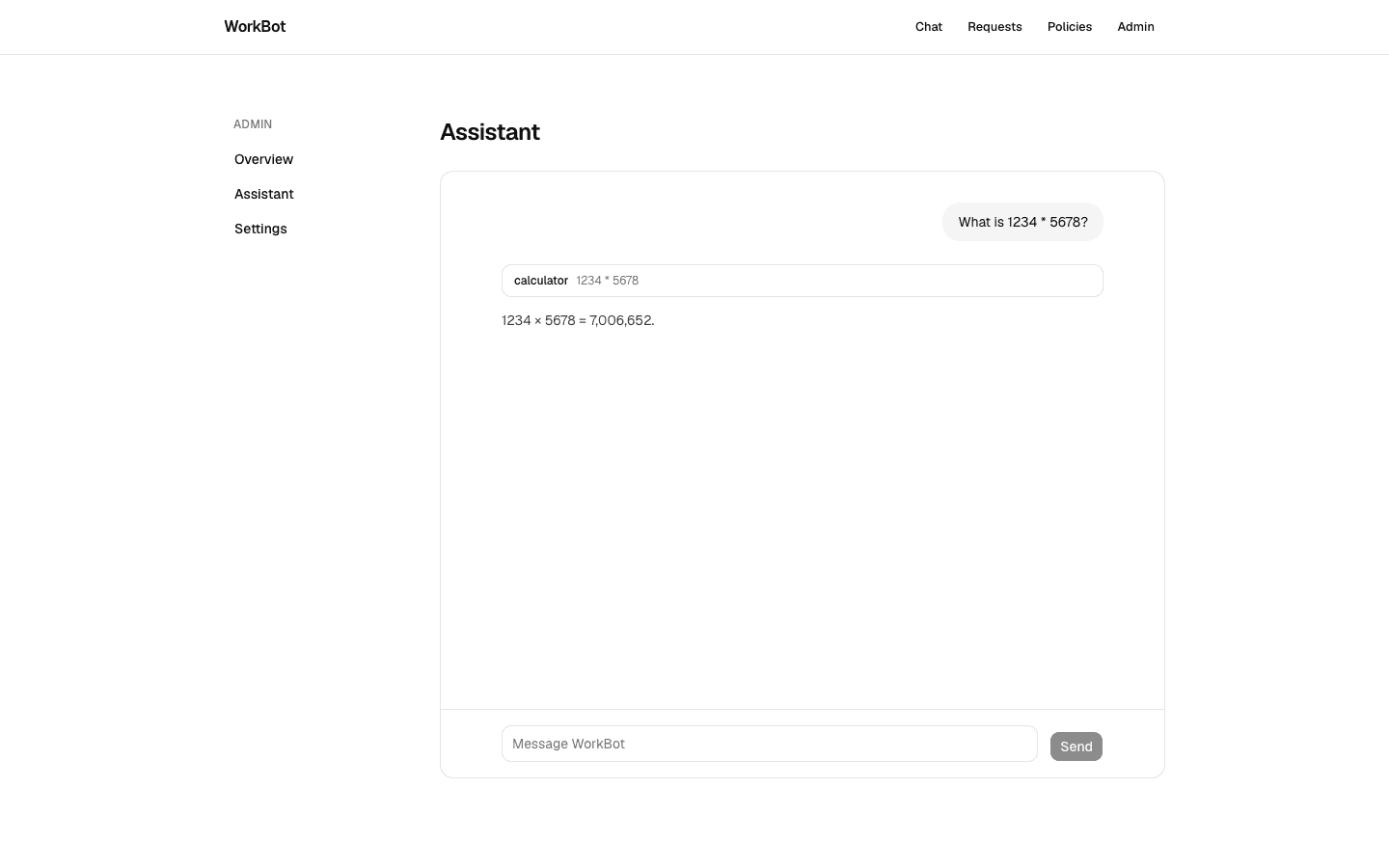
The operations team works in the admin console from Day 3, so the same assistant belongs there too. Because Chat takes its conversation id as a prop, the console can reuse the component and the route handler as they are.

Study first

  • Read how useChat uses its id option in the useChat reference. A different id means a separate conversation, which keeps the console's chat apart from the public page's.

Build

  1. Add /admin/assistant, a page with Chat in a fixed-height panel, and a link to it in the console's navigation.
  2. Add links to /chat from the header and the landing page.

Done when

  • The console's assistant answers, and its conversation is separate from the public page's.
The assistant in the admin console
The console shows the same chat component, with its own conversation id.

Deploy and verify

Everything so far runs on your machine. On Vercel, the deployment needs the same keys. The chat route also needs more time than a function gets by default, because a tool loop on the large model can run long.

Study first

Build

  1. In the Vercel project's environment variables, set ANTHROPIC_API_KEY and DATABASE_URL for production and preview.
  2. Add export const maxDuration = 60 to the chat route, so the function's default time limit cannot cut off a tool loop on the large model.
  3. Open the pull request's preview and ask a question that calls a tool. Then merge, and do the same on production.

Done when

  • /chat streams a reply with a tool call, on the preview and on production.
  • /api/health reports the database on both, as it has since Day 5.
Technical notes
  • The route runs on the Node.js runtime, which the SDKs and the database driver need.
  • On Vercel, a streamed response runs within the function's duration limit, which depends on the plan. maxDuration raises the limit for this route, up to the plan's ceiling.

Resources