Week 3 · Day 14 of 40 · Build AI

AI scraping, browser use and desktop use

You ship: An AI scraper with pagination, and a browser agent that completes a task in a legacy portal. Builds on: Day 11.

What you'll build today

After Day 13, WorkBot can find anything in its own knowledge base, but much of what an operations or support team needs lives on other people's websites. Supplier pages list hours, prices and services in whatever layout each site chose. Some older systems, such as a vendor's invoice portal, have no API at all, so the only way in is through the screen.

Today you build 2 ways to read the web. A scraper sends a page's text to the model with a schema, and it gets back records in the shape you asked for. It no longer depends on where each value sits in the HTML. A browser agent looks at screenshots and takes one action at a time, which is also how computer use lets a model operate a whole desktop. You also learn why a web page is untrusted input, and how to keep a browser from reaching your own machine.

By the end of the day you can scrape suppliers across several pages, and an agent can look up an invoice in a legacy portal.

By the end of the day you can

  • Extract structured data from websites with AI
  • Automate a browser with AI-driven navigation
  • Understand Claude computer use for desktop automation

Topics

AI-Powered Web Scraping

  • The problems with traditional scraping: brittle selectors, layout changes, dynamic content and anti-bot measures
  • The AI approach: fetch the page → send its content to a model → extract structured data that matches a schema
  • Extraction schemas: "from this page, extract {title: string, price: number, features: string[]}"
  • Messy HTML: clean it, select the relevant sections, and truncate it to fit the context
  • Cost: extract only the relevant portion of the page, cache results, and use Haiku for simple extraction
  • Firecrawl: an AI scraping service that handles rendering, cleaning and extraction

Browser Automation with AI

  • Playwright basics: launch a browser, navigate, click, type and take screenshots
  • The AI and browser pattern: screenshot the page and send it to a vision model from Anthropic or OpenAI. The model decides the next action. Execute it, and repeat.
  • Action types: click (coordinates), type (text into a field), scroll, navigate, wait
  • Page understanding: "What's on this page? What are the main elements? Where is the login form?"
  • Action planning: "To achieve goal X, I need to: 1) click the menu, 2) select 'Settings', 3) toggle the switch"
  • Form filling: identify the fields, work out the correct values from context, and handle dropdowns and checkboxes
  • Navigation: multi-page flows, redirects, and waiting for pages to load
  • Browserbase: cloud browser infrastructure, which runs headless browsers with residential proxies for AI agents

Desktop Use / Computer Use

  • The Claude computer use API: what it is and how it works
  • OpenAI computer use: the same screenshot, action, repeat loop through its computer-use tool
  • Sending screenshots: capture the screen → send it as an image to Claude → receive action instructions
  • Action execution: translate Claude's instructions into operating-system actions (click at x,y, type text, press keys)
  • Use cases: automate desktop workflows, test desktop apps, and enter data from legacy systems
  • Current limitations: latency (screenshot → analyze → act is slow), accuracy and safety
  • Safety: always run it in a sandbox, and never give it unrestricted access to production systems

Build

Features shipped today

  • WorkBot: A scraper that extracts supplier hours, prices and services from public pages; a browser agent that completes a task in a legacy portal with no API

Part 1: AI Scraper

Build a scraping tool that:

  1. Takes a URL and a Zod schema that defines what to extract
  2. Fetches the page (with Firecrawl, or with a direct fetch and cheerio)
  3. Sends the page's text to the model with the extraction schema
  4. Returns validated, structured JSON
  5. Handles pagination: follows "next" links and collects all the results
  6. Works on 3 kinds of page (for example product listings, job boards or news articles)

Part 2: Browser Automation Agent

Build a browser agent with Playwright and Claude vision:

  1. Takes a goal in plain language, such as finding the payment status of invoice INV-4411 in a legacy portal. Another example: "Find the cheapest flight from San Francisco to New York on June 15"
  2. Opens a browser at the start address
  3. Uses Claude vision to understand the page and decide each action
  4. Executes actions (click, type, scroll) to achieve the goal
  5. Extracts and returns the result
  6. Handles errors: a page that does not load, an element it cannot find, an unexpected popup

Walkthrough

Part 1

Extract records with a schema

A scraper usually breaks when a site changes its layout, because it reads values from fixed places in the HTML. This scraper fetches the page and reduces it to text, and the model returns every record that fits a Zod schema, which Zod then checks. There are no selectors to break when the layout changes.

Study first

  • Learn why selectors break. A selector encodes where a value sits on the page, while a schema encodes what you want.
  • Look again at structured output, this time with a list, as in Output.object({ schema: z.object({ items: z.array(Item) }) }). Use describe() on each field to say how a value is written.

Build

  1. Split fetchPage(url) out of readPage in src/lib/web.ts, keeping the guards that readPage got on Day 7. It refuses private addresses, checks each redirect and caps the bytes it reads, and it returns the HTML and the address the page was finally read from.
  2. Write nextLink(html, base) in src/lib/scrape.ts. It finds the link a page calls next and resolves it against the page's address. That is a link with rel="next", or a link whose text is next, more, older, › or ».
  3. Write scrape(url, Item, model, { pages, limit }) in the same file, where Item is the Zod schema for one record. It fetches each page, asks the model for the items in the page's text and validates them, then follows the next link, up to pages times.
  4. Add pnpm scrape <url> [--pages n] with a supplier schema of name, hours, services, prices and contact. Each value stays as the page writes it, not reformatted.
  5. Write tests for nextLink on the link shapes above, and for scrape against a stubbed fetch and a scripted model that answers by page. Test a 404 as an error too.

Done when

  • pnpm scrape on a supplier's page prints 1 record in the schema's shape.
  • On a listing of suppliers it prints 1 record for each, with null for what a page does not state.
Technical notes
  • The page goes to the model as text, not HTML, cut to 12,000 characters by default. The schema and the instruction to copy values exactly as written do the extraction.
  • The unit test's scripted model reads the address on the first line of each prompt and answers for that page, so each page gets its own records.
  • A page with no matching records gives an empty list, not an error, while a page that is not there is an error from fetchPage, with its status.
Part 2

Try it on real pages

Unit tests prove the logic, but real pages differ in how they are built, so you try the scraper on a few kinds of page. Scraping a site you do not own also comes with rules, which this part covers.

Study first

Build

  1. Add a live test that scrapes the first 2 pages of Hacker News on the small model and expects more than 30 stories. A page holds 30, so the count proves the scraper followed the next link.
  2. Run pnpm scrape on 3 kinds of page: a single supplier, a listing, and a page that draws its content with JavaScript.

Done when

  • The live test finds more than 30 stories across the 2 pages.
  • You have tried all 3 kinds of page, and on the JavaScript page the fields its HTML never states come back null.
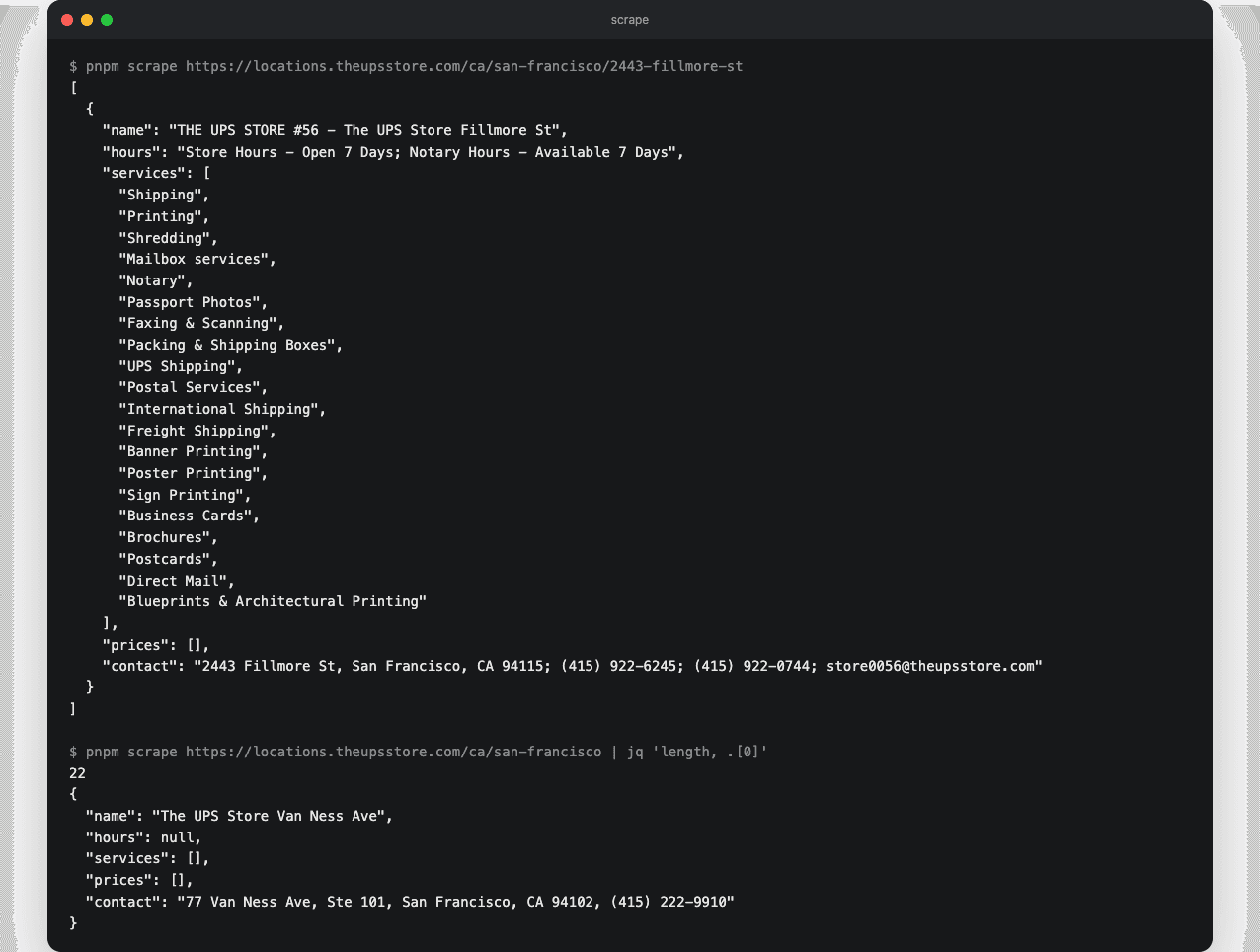
Records scraped from real pages
In the reference run, the small model read a supplier page and a listing of 22 with the schema as its only instruction. The listing states no hours in its HTML, so hours come back null.
Technical notes
  • Watch the cost, because the small model reads up to 12,000 characters per page. Cut the text to the section that holds the records, and cache a page's records by address when a page is read more than once.
  • Content drawn by JavaScript is not in the HTML, so this scraper does not see it. Firecrawl, a paid service, fetches, renders and cleans pages for the model, which closes that gap.
  • Before you scrape a site you do not own, read its terms of use, which say what is allowed, and its robots.txt, which says what it asks crawlers to skip. Keep the rate low, and identify yourself in the request headers.

Part 3

A browser kept in bounds

Some systems have no API and no clean HTML, so an agent has to work them through a browser. Before the agent can drive one, the browser needs a small interface the agent can call. It also must not be able to reach anything on your machine or your network.

Study first

  • Learn the Playwright basics: launch, a context with a viewport, goto, screenshot, mouse.click, keyboard.type, mouse.wheel and route, which intercepts every request.
  • Learn where the browser runs. During development it is the machine's Chrome, and in production Browserbase and similar services run headless browsers for agents.

Build

  1. Write src/lib/browser-agent.ts with a Browser interface of 9 methods (goto, screenshot, click, type, press, scroll, wait, url, close).
  2. Implement it in chromeBrowser(start) with Playwright, on the Chrome installed on the machine. Use a headless context at 1024 by 768, with service workers blocked and dialogs dismissed.
  3. Check every request against bounds(start), which allows only the start site and public addresses.
  4. Test bounds from a portal address, a private address and a local file. Add a live test that sends the real browser to 127.0.0.1 and expects the request to be blocked.

Done when

  • pnpm test passes the 3 bounds cases, and the live test shows the request to 127.0.0.1 blocked.
Technical notes
  • Treat pages as untrusted. Text on a page can tell the model to go to an address on this machine or on the private network. The next screenshot would then show the model whatever is there. So chromeBrowser puts the route on the browser context, not on the page, and blocks service workers. Every request then either passes bounds(start) or is blocked, whether it comes from a goto, a click, a redirect, an embedded image or a popup. bounds(start) allows the start site, or a public address by the rule readPage uses, and a blocked load shows up in the agent's history like any failed goto.
  • chromeBrowser dismisses dialogs as they appear, because a dialog would otherwise block every later action.

Part 4

The screenshot loop

Driving a system from screenshots costs a model call per step, so the agent gets a fixed viewport, a short list of actions and a step limit. Each step shows the model the page, takes back one action and runs it in the browser from the previous part.

Study first

  • Learn how the AI SDK takes an image, as a file part with mediaType: "image/png" and the screenshot's bytes, next to the text.
  • Learn Zod's discriminated unions, which let one schema accept several shapes that a single field tells apart.

Build

  1. Define an Action schema as a discriminated union, with one shape per action. click takes coordinates, and the others are type, press (Enter, Escape, Tab), scroll, wait, goto, done with the result and give_up with the reason. Every action carries a why.
  2. Write browse(goal, start, model, browser, { maxSteps, on }). Each step sends the task, the address, the actions so far and the screenshot, gets one action back through Output.object, runs it and records it.
  3. End the run on done or give_up, and end it at the step limit with "Stopped after N steps".
  4. Add pnpm browse --start <url> "<task>", which prints each action and its reason.
  5. Write tests with a fake browser and a scripted model that cover a 4-step run to done, a give_up and the step limit.
  6. Add a live test that drives a legacy invoice portal on the small model and expects the status word for word. The portal is a fixture, a local HTML page in src/lib/fixtures/.

Done when

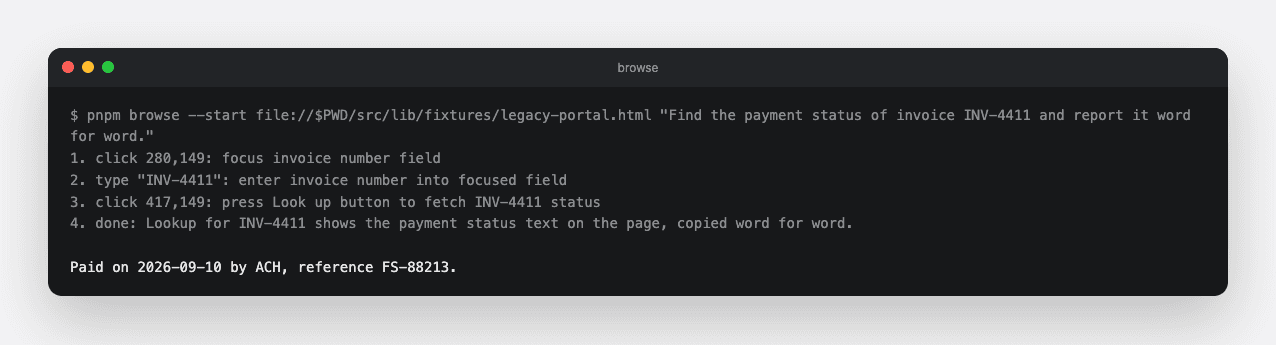
  • pnpm browse --start file://$PWD/src/lib/fixtures/legacy-portal.html "Find the payment status of invoice INV-4411 and report it word for word." clicks the field, types the number and clicks Look up. It then reports Paid on 2026-09-10 by ACH, reference FS-88213.
The browser agent on a legacy portal
In a real run on the small model, the agent clicks to focus the field, types the invoice number, clicks the lookup and reads the result off the screen.
Technical notes
  • The model reads coordinates off the screenshot, so the viewport is fixed and stated in the prompt. A different size would move every element.
  • Each step gives the agent its own history, action by action with the reason, so it does not repeat a click that did nothing.
  • A goto that fails is written into the history as "page did not load" instead of thrown, so the agent can try another address or give up.
  • Anthropic's computer-use tool and OpenAI's computer-use tool run the same loop at the operating-system level. A screenshot goes in, one action comes out, and the loop repeats. The cost has the same shape, 1 model call with an image per step, so budget in steps. Run such an agent in a sandbox, never with access to production systems.

Resources